
Game Zone Management System
Run your PS5, VR or gaming cafe from one screen: hourly sessions with live timers, cash and UPI billing, WhatsApp receipts, loyalty coins, coupons, hour packs, a staff counter and daily cash close. One-time purchase, no monthly fee.
Overview
Game Zone Management System is a WordPress plugin for running a game zone or gaming cafe: PS5 and PS4 stations, VR headsets like Sony VR2 and Meta Quest, pool tables, carrom boards, chess, anything you charge by the hour. It replaces the register and pen, and the monthly software subscription, with one screen your staff can learn in minutes.
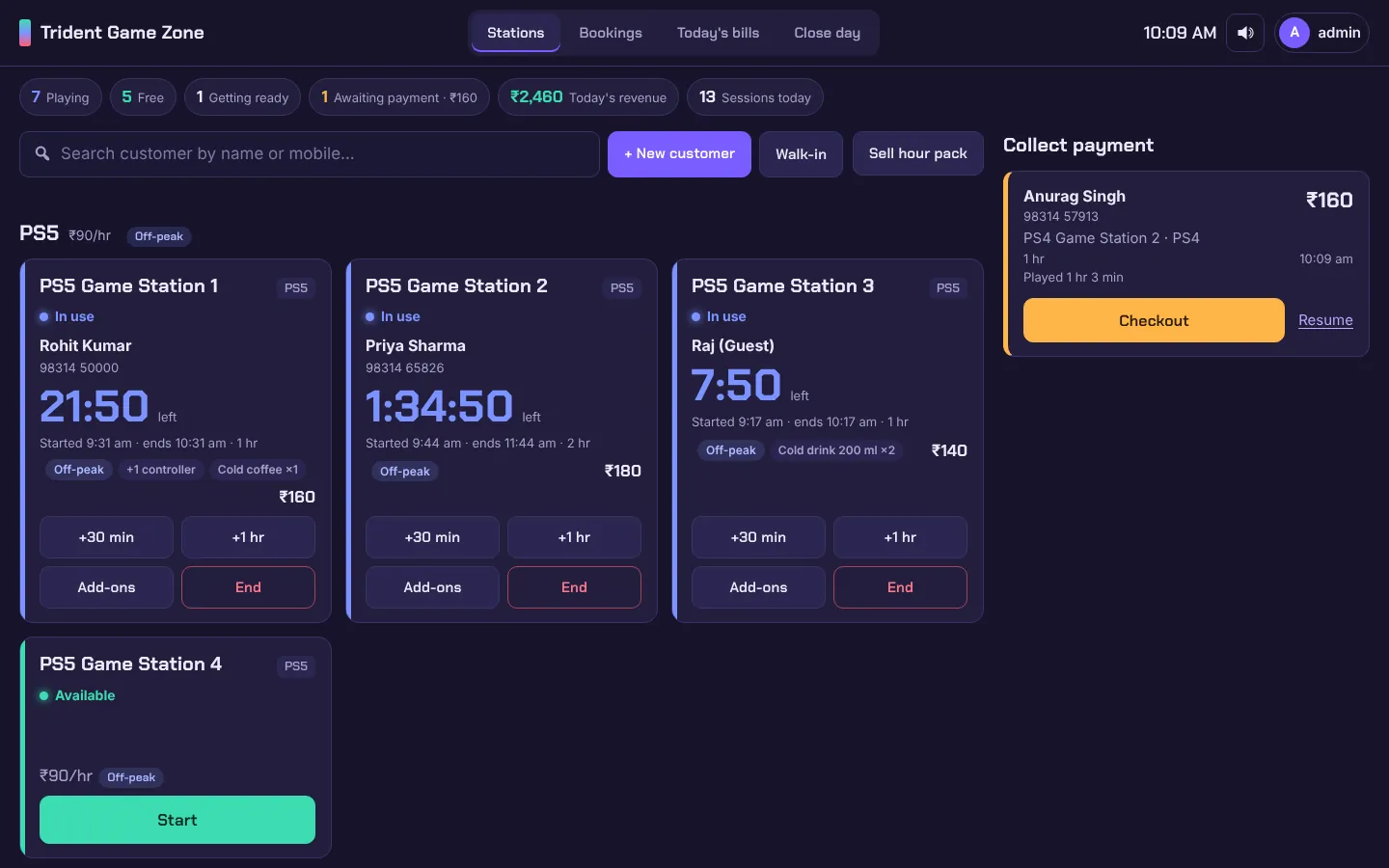
Customers are checked in on a live station board, sessions count down on their own, snacks and extra controllers go straight onto the bill, and payment is taken in cash or by UPI QR code. Receipts print on a thermal printer or go to the customer on WhatsApp. Regular customers earn loyalty coins and coupons that bring them back, and at the end of the day your staff counts the drawer so you always know your takings.
Built for game zones
Hourly billing per game type, 30-minute steps, overtime grace and buffer time between players.
Made for India
Rupee billing, UPI QR payments, WhatsApp receipts, a full Hindi translation and customer consent built in.
Owner and staff
A full-screen counter for staff; reports, expenses, profit and settings only for you.
One-time purchase
Runs on your own WordPress site. No monthly fee, no per-bill charges, your data stays with you.
New here? Watch the video tutorials for a walk-through of installation, settings and a full customer visit from start to payment.
Installation
Install & activate
Upload the plugin zip in Plugins → Add New → Upload Plugin and click Activate. A Game Zone menu appears in your WordPress admin.
Set your time zone
In Settings → General, set the time zone to your city (for India, Kolkata) so session times and bills show the right time.
Fill in your shop details
Open Game Zone → Settings and add your game zone name, logo, phone, address and UPI ID. See Settings.
Add your games and stations
In Game Zone → Setup, add your game types, stations, snacks and hour packs. See Setting Up Your Game Zone.
Start your first session
Open the dashboard or the staff counter, pick a customer and a station, and press Start.
| WordPress | 6.2 or newer (tested up to 7.1) |
|---|---|
| PHP | 7.4 or newer |
| Other plugins | None required. WooCommerce is not needed. |
| Languages | English and Hindi (every screen, receipts included) |
Want to look around first? Game Zone → Tools can load sample stations, customers and two weeks of bills, and remove them again with one click.
Settings
Everything is under Game Zone → Settings, grouped so you can set up your shop in one pass.
| Shop details | Game zone name, logo (shown on the admin pages, staff counter and receipts), phone, address, currency, and a dark or light admin look. |
|---|---|
| Sessions | Session lengths offered (30, 60, 90, 120, 180 minutes or your own), overtime grace minutes, buffer time between players and how long a booked station is held. |
| Off-peak pricing | The days and hours when your cheaper off-peak rates apply, e.g. 10 AM to 1 PM on weekdays. |
| Billing & payment | Bill number prefix (e.g. TZ-00001) and your UPI ID for QR payments. |
| Coins | Coins earned per hour played, what each coin is worth, and the most coins that can be used on one bill. |
| Coupons | Fixed or percentage discount, value, validity days, minimum bill, one coupon at a time, and the coupon prefix. |
| Receipts | 58 mm or 80 mm paper, and your own thank-you message. |
| Customers | The consent text customers agree to when they share their mobile number. |
| Cash | Opening cash kept in the drawer each morning, and whether staff count the drawer blind. |
| Staff counter | The counter page address, whether staff see today's takings, and the security limits. |
| Data | How long to keep the activity log, and whether to delete everything when the plugin is deleted. |
Setting Up Your Game Zone
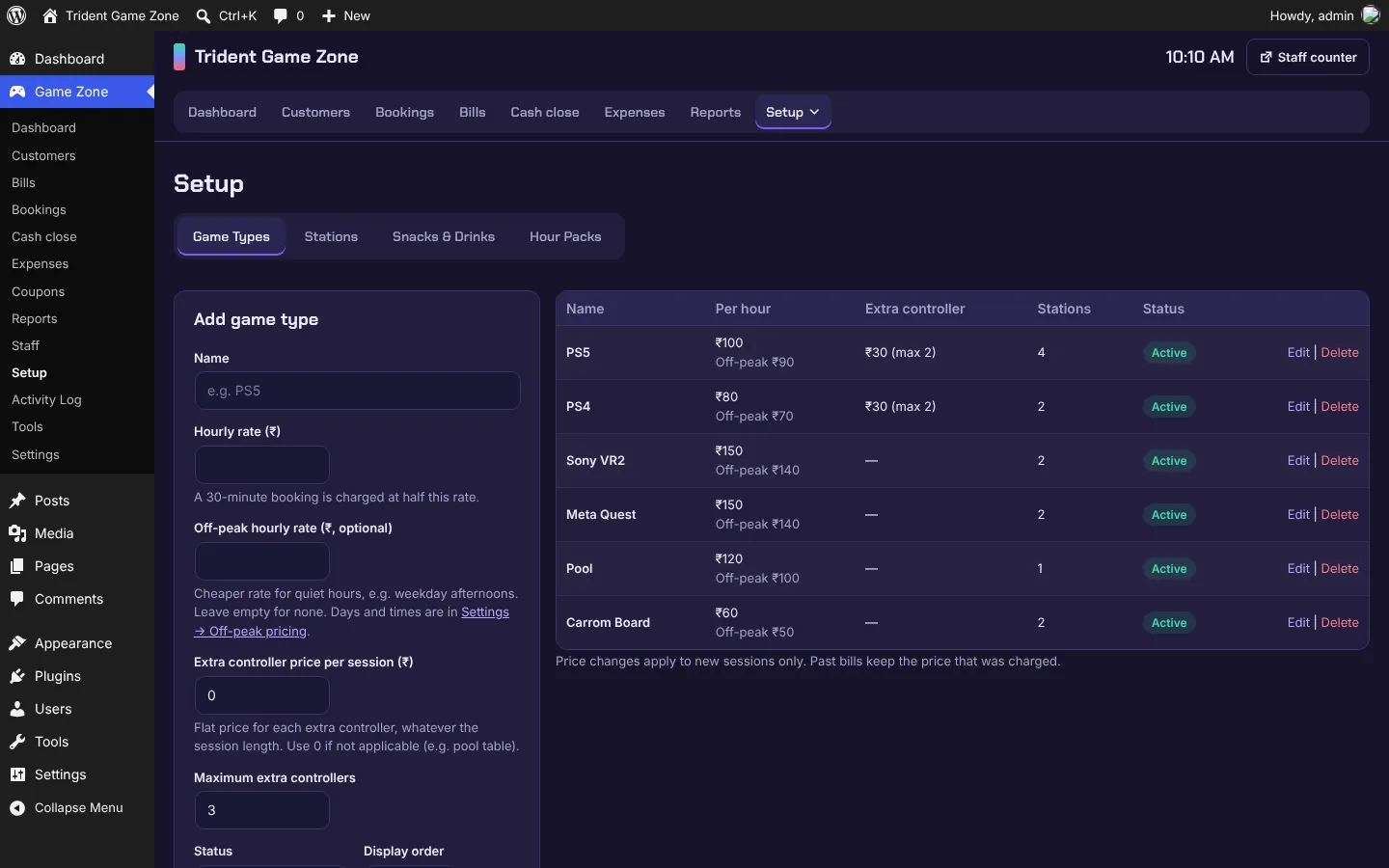
Game Zone → Setup has four tabs. Set them up once; change prices any time (past bills keep the price that was charged).
Game types
PS5, PS4, Sony VR2, Meta Quest, Pool, Carrom Board, Chess… each with its own hourly rate, optional off-peak rate, extra controller price and maximum controllers.
Stations
Name every console or table (PS5 Game Station 1, 2, 3…). Add them one by one or several at once.
Snacks & drinks
Cold drinks, cold coffee, samosa, momos and anything else you sell, with prices. Staff add them to a running session in two taps.
Hour packs
Prepaid packs such as 10 hours of PS5 for ₹900, valid for 90 days, used up visit by visit.
Sessions & Station Board
The station board is where your staff spend the day. Each station shows whether it is free, in use or getting ready, with a live countdown, the customer's name, add-ons and the running total.
Start
Search a customer by name or mobile, register a new one, or choose Walk-in. Pick the station and the play time (30 min, 1 hr, 1.5 hr…) and add extra controllers if needed.
Extend
Customer wants more time? Tap +30 min or +1 hr while they play. The bill updates straight away.
Add snacks & controllers
Tap Add-ons to put a cold coffee, momos or an extra controller (for multiplayer games like WWE) on the same bill.
End
When time is up the tile turns red. End the session and it moves to Collect payment, with overtime handled by your grace-minutes setting.
A buffer time between players (e.g. 10 minutes to wipe controllers) shows the station as Getting ready. It is a reminder, not a lock: staff can still start the next session straight away.
Checkout: Cash & UPI
Checkout shows the full bill (play time, extra controllers, snacks) and any coins, coupons or hour-pack time the customer can use.
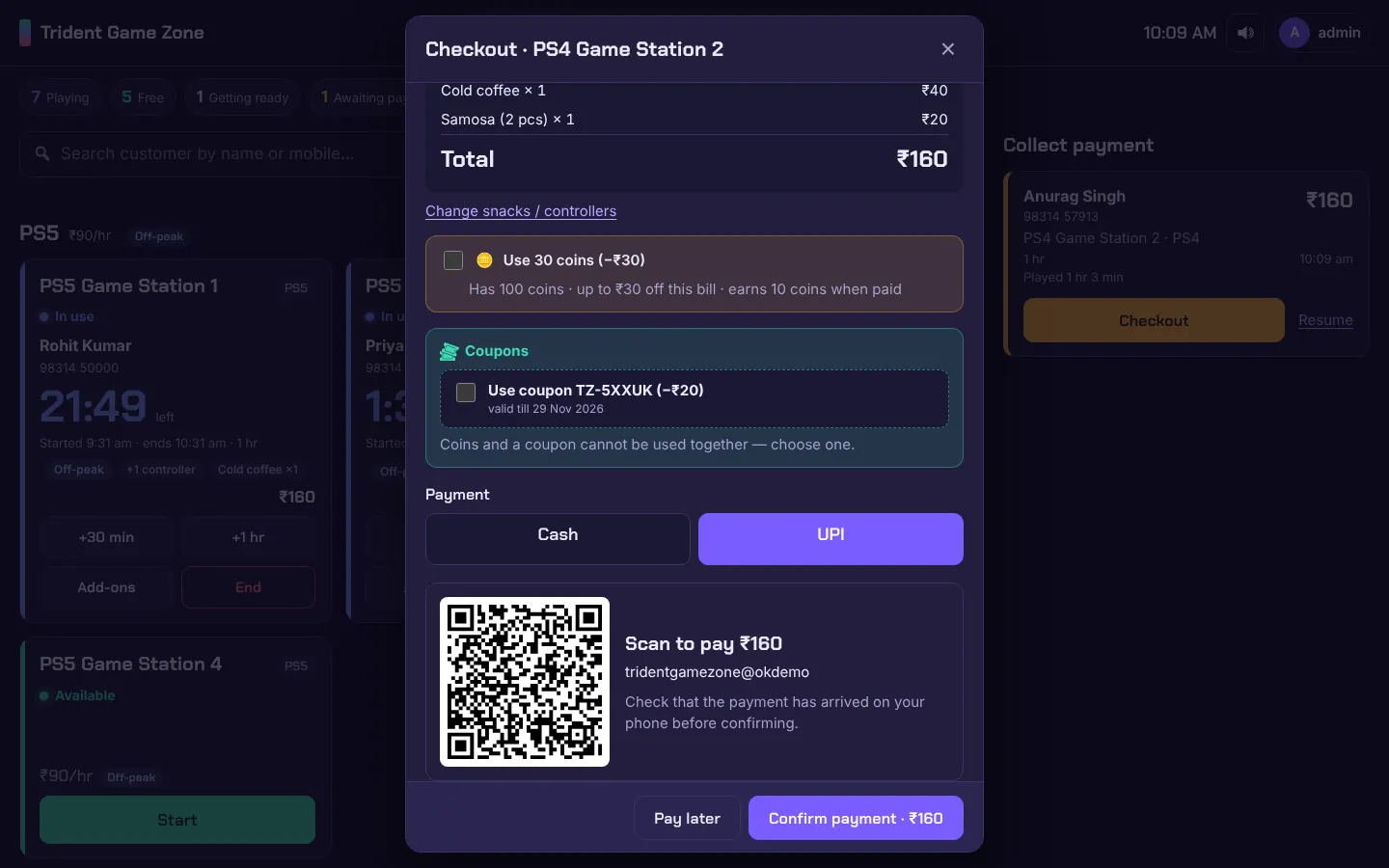
| UPI | A QR code for the exact amount, payable to your UPI ID. The customer scans it with any UPI app; staff confirm once the money arrives. |
|---|---|
| Cash | Enter the amount received and the counter shows the change to give back, or tap Exact. |
| Pay later | Leave the bill in Collect payment and take payment when the customer is ready. |
| Undo | The owner can undo a payment taken by mistake; it is noted in the activity log. |
Receipts & WhatsApp
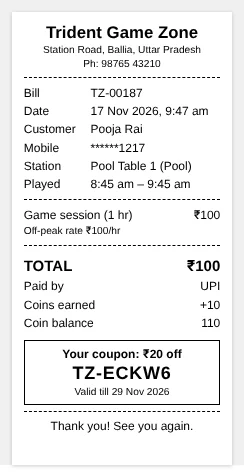
Every bill gets a numbered receipt with your shop name, logo, address and phone, the station, play time, snacks, extra controllers, coins earned and the customer's next-visit coupon.
- Print on a 58 mm or 80 mm thermal printer, or any printer.
- WhatsApp the bill to the customer's number in one tap, as a message or as a receipt image.
- Reprint or resend any bill later from Bills.
Mobile numbers are masked on printed receipts, so a receipt left on the counter doesn't expose a customer's number.
Customers & Guests
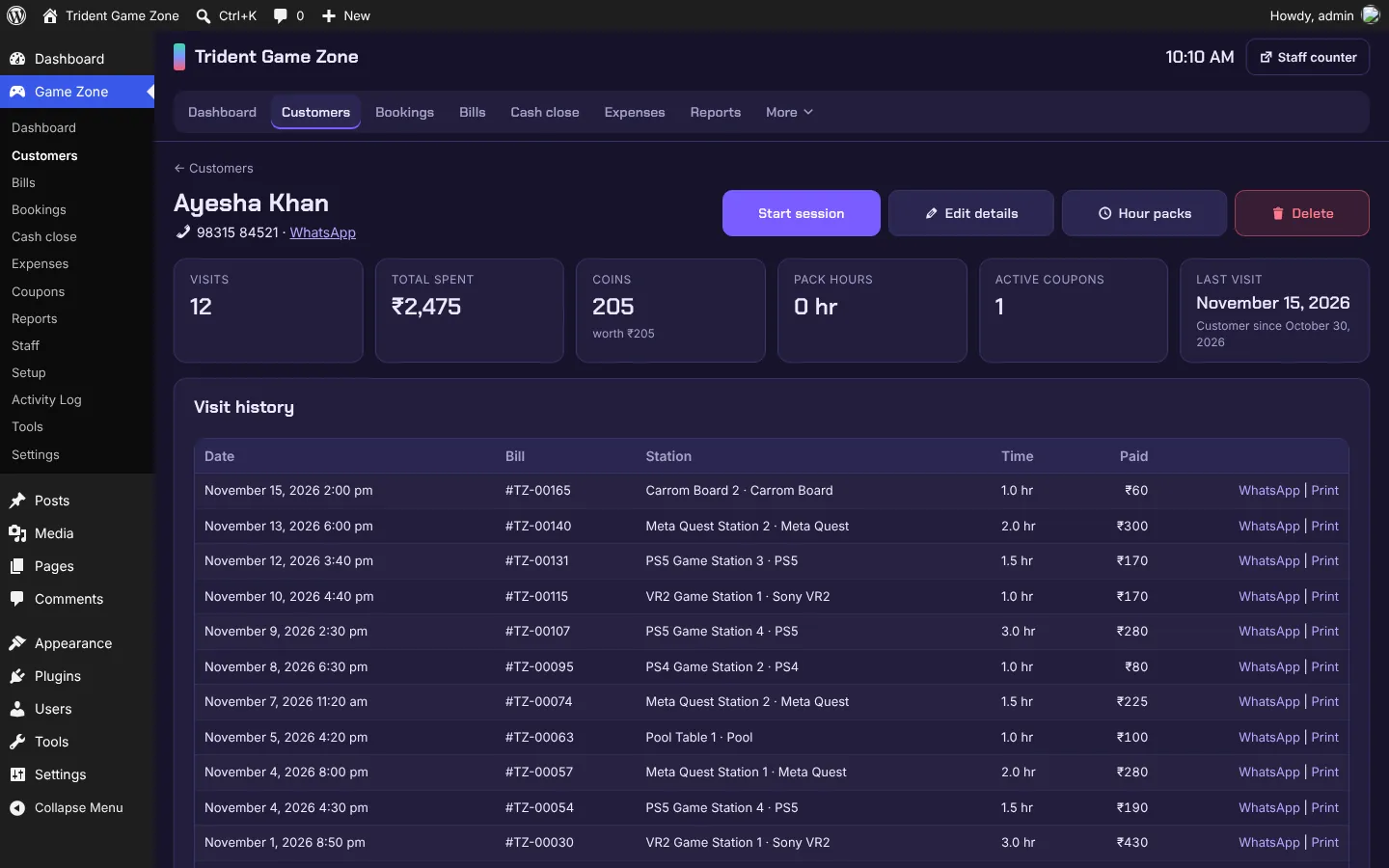
Register a customer with a name and mobile number (with their consent) once; after that, staff find them by typing a few letters of the name or digits of the number.
Customer profiles
Visits, total spent, coin balance and history, coupons, hour packs and every past bill, with WhatsApp and reprint links.
Guests
Customer doesn't want to share a number? Start them as a guest. Only the name is kept, on that bill. Guests get no coins, coupons or packs.
Walk-ins
No name needed at all for a quick game. Their bills are counted in reports like any other.
Edit, export, delete
Correct details, export a customer's data, or erase them on request (see Privacy & Data).
Coins & Coupons
Two simple loyalty tools that bring regular customers back, both optional and both under your control.
| Coins | Registered customers earn coins for every hour they play (e.g. 10 coins per hour, 1 coin = ₹1). Coins never expire. |
|---|---|
| Coin limit | Only a set number of coins can be used on one bill (e.g. 30 coins per hour played), so nobody plays free on the tenth visit. |
| Next-visit coupons | After paying, the customer gets a unique coupon (e.g. ₹20 off, or a percentage), printed on the receipt and valid for the days you choose. |
| Fair-use rules | Coins or a coupon, not both on one bill. A minimum play time before they can be used. Optionally, no new coupon until the last one is used. |
| Owner extras | Give a customer coins or a coupon by hand, for example as an apology or a birthday treat. |
Hour Packs & Off-Peak Pricing
Prepaid hour packs
Sell 10 hours of PS5 for ₹900 (instead of ₹1,000), valid for 90 days. Each visit uses up pack time automatically at checkout; the balance is on the customer's profile and receipt.
Off-peak pricing
Quiet from 10 AM to 1 PM? Set a cheaper hourly rate for those hours (e.g. ₹90 instead of ₹100). Off-peak sessions are tagged on the board and the bill.
Hour packs bring cash in up front and keep customers coming back to your game zone. Off-peak rates fill stations that would otherwise sit empty.
Advance Bookings
Take bookings for a station at a set time, for a registered customer or a guest, with an optional advance payment by cash or UPI.
- The station is held for the time you set in Settings (e.g. 30 minutes). If the customer doesn't arrive, it is released for walk-ins.
- When they arrive, one tap starts the session on the booked station, and the advance is taken off the bill.
- Cancel with or without a refund; every advance and refund is counted in the cash close.
- Send a booking confirmation on WhatsApp.
Staff Counter
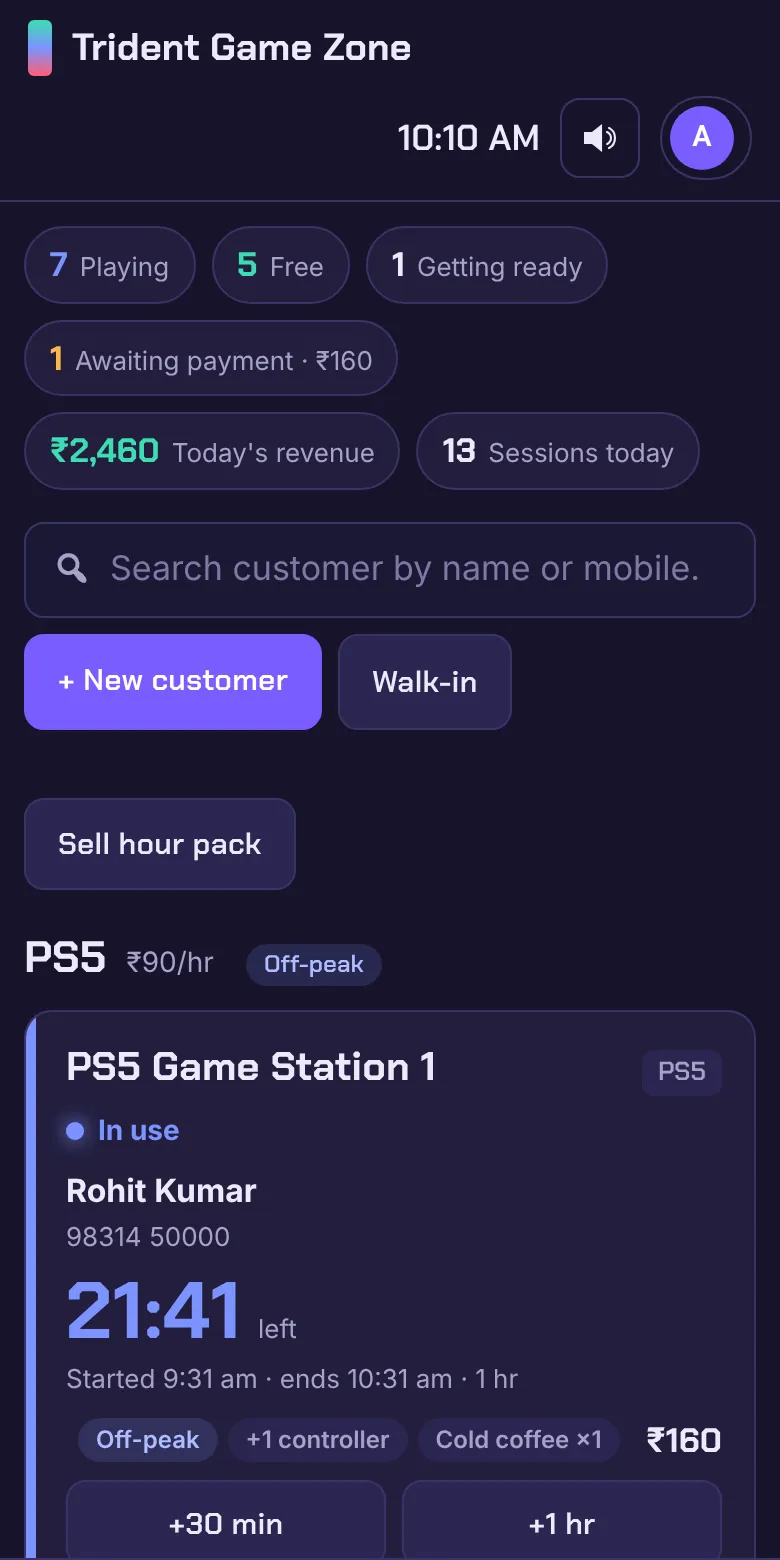
Give every staff member their own login. Staff work on a full-screen counter page (for example yourdomain.com/counter) that works on a computer, tablet or phone, and never see the WordPress admin.
- Stations, bookings, today's bills and close day: everything a shift needs.
- Staff can't see expenses, reports, settings or past takings. Today's revenue is shown only if you allow it.
- Limits that stop mistakes: staff can cancel a session only in its first minutes, and can't undo payments.
- Switch a staff account off at any time; every action is in the activity log.
- Each staff member can use the counter in English or Hindi.
Close Day & Expenses
At closing time, staff count the drawer note by note (₹500, ₹200, ₹100…). The plugin compares the count with the day's cash bills, advances, refunds and drawer expenses, and shows whether the drawer is short or over.
Blind count
Optionally hide the expected amount from staff until they have counted, so the count is honest.
Expenses
Record rent, electricity, internet, snack stock, salaries and repairs. Expenses paid from the drawer are included in that day's cash close.
Owner review
You see every close: who counted, what was expected, what was there, and any note. Mark it as checked.
Opening cash
The float kept in the drawer each morning is set once in Settings.
Reports & Exports
Game Zone → Reports gives you each month at a glance: total collected (cash and UPI), profit after expenses, bills, hours played, earnings from games, controllers and snacks, discounts given, coins, coupons, hour packs, bookings and cash-close status, with a collected-per-day chart.
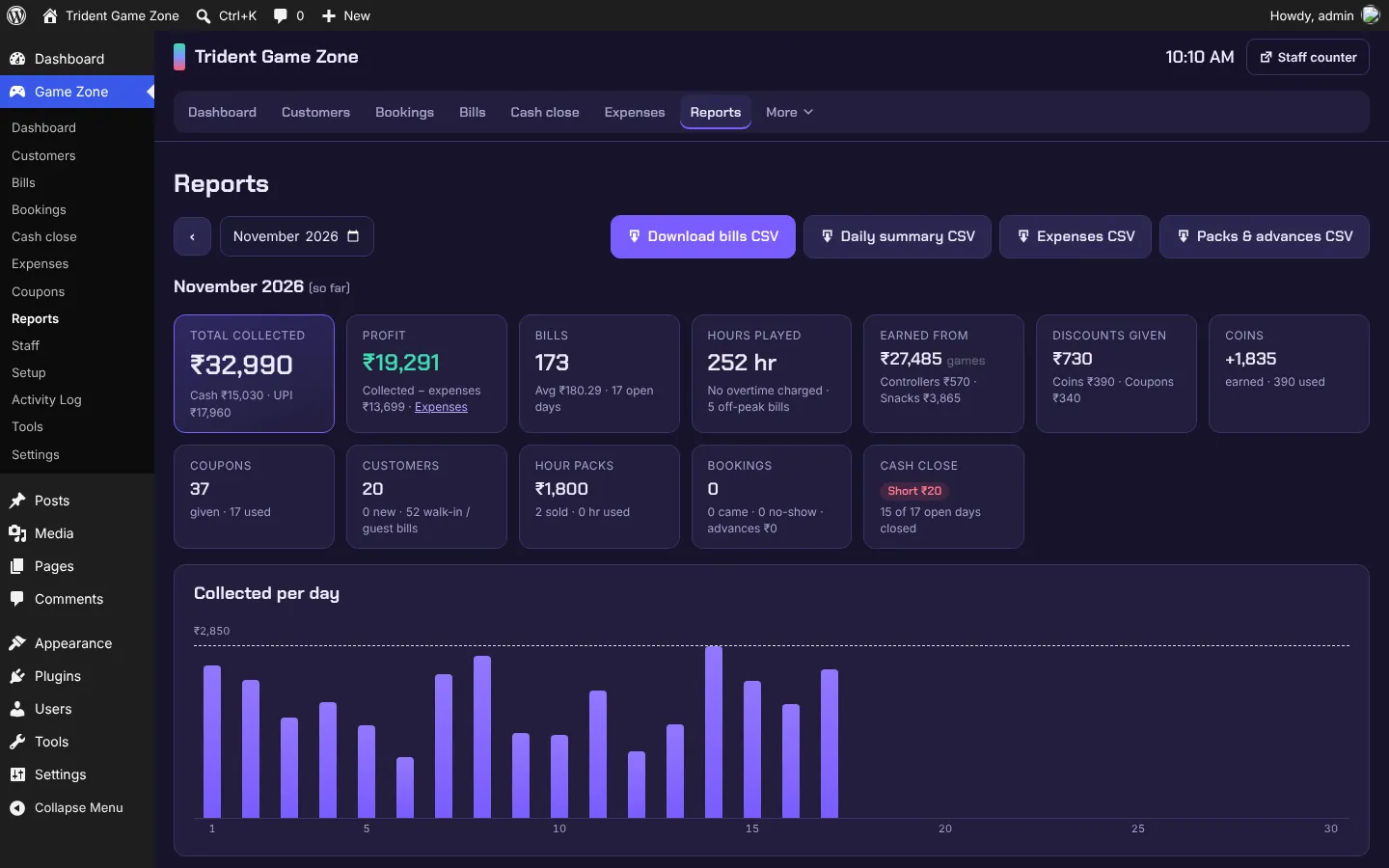
Download the month as CSV for your accountant: every bill, a daily summary, expenses, and packs and advances. Spreadsheet-safe, so cell values can't run as formulas.
Security
Your staff counter handles money, so it is locked down by default and you can tighten it further.
| Shop network only | Allow the staff counter only from your shop's internet connection (IP address). From home or mobile data, staff can't sign in. |
|---|---|
| Registered devices | Allow the counter only on browsers you have approved, for example the front-desk PC, even on the shop Wi-Fi. Staff can request approval; you approve or remove devices in one click. |
| Login protection | Five wrong passwords pause sign-in for that username for 15 minutes, on the counter and on the normal WordPress login. |
| Owner-only actions | Settings, reports, expenses, undoing payments and deleting customers are for the owner only. |
| Activity log | Who started, extended, ended, discounted or deleted what, and when. |
Built to WordPress.org coding standards and checked with the official Plugin Check tool: every request is permission-checked, every form protected, and every database query prepared.
Privacy & Data
- Consent: customers agree to share their name and mobile number when registering. You set the wording.
- Export & erase: export a customer's data or erase it on request, from their profile or with WordPress's own privacy tools. This helps you follow India's DPDP Act.
- Guests leave only a name on the bill; no mobile number is stored.
- Your data stays with you, on your own WordPress site. Nothing is sent to us or to anyone else.
- Clean removal: deactivating never deletes data. If you choose, deleting the plugin removes all of it.
Video Tutorials
A step-by-step video series on YouTube. Each part covers one area of the plugin.
- Part 1: Introduction. What the plugin does: station board, extending sessions, snacks and extra controllers, stations for every game, staff accounts.
- Part 2: Installation & Settings. Installing the plugin and every setting: sessions, off-peak pricing, UPI, coins, coupons, receipts, cash and security.
- Part 3: Setup & First Session. Adding game types, stations, snacks and hour packs, then a full visit from start to UPI and cash payment.
- Coming next: staff accounts and closing the day.
Frequently Asked Questions
No. You buy the plugin once and run it on your own WordPress site. There is no monthly subscription and no per-booking or per-bill charge.
No. Game Zone Management System works on its own. It needs only WordPress 6.2 or newer and PHP 7.4 or newer.
Yes. It runs on any WordPress site, including WordPress installed on the shop computer. With normal web hosting you and your staff can also open the counter from a phone or tablet.
No. The checkout shows a UPI QR code with the exact amount, payable to your own UPI ID. Your staff checks that the money has arrived on the shop phone and then confirms the payment. The plugin does not take a cut or connect to a payment gateway.
Any printer your browser can print to. Receipts are laid out for 58 mm and 80 mm thermal rolls, and can also be sent to the customer on WhatsApp.
Start them as a guest. Only the name is kept, on that bill, with what they played and paid. Guests do not get coins, coupons or hour packs; registered customers with a mobile number do.
Yes. You can limit the staff counter to your shop's internet connection, to devices you have approved, or both. The owner is never limited.
Yes. The plugin is fully translated into Hindi, and each staff member can choose English or Hindi for their counter.
No. Deactivating never deletes anything. Data is removed only if you delete the plugin with the “Delete all data on uninstall” option turned on.
Game Zone Management System · Developed by Vishal Singh @ Webcasata · Version 1.7.1 · Licensed under GPLv2 or later